Sky software files VAT Returns. The set up in the master file must be done first.
VAT Efiling
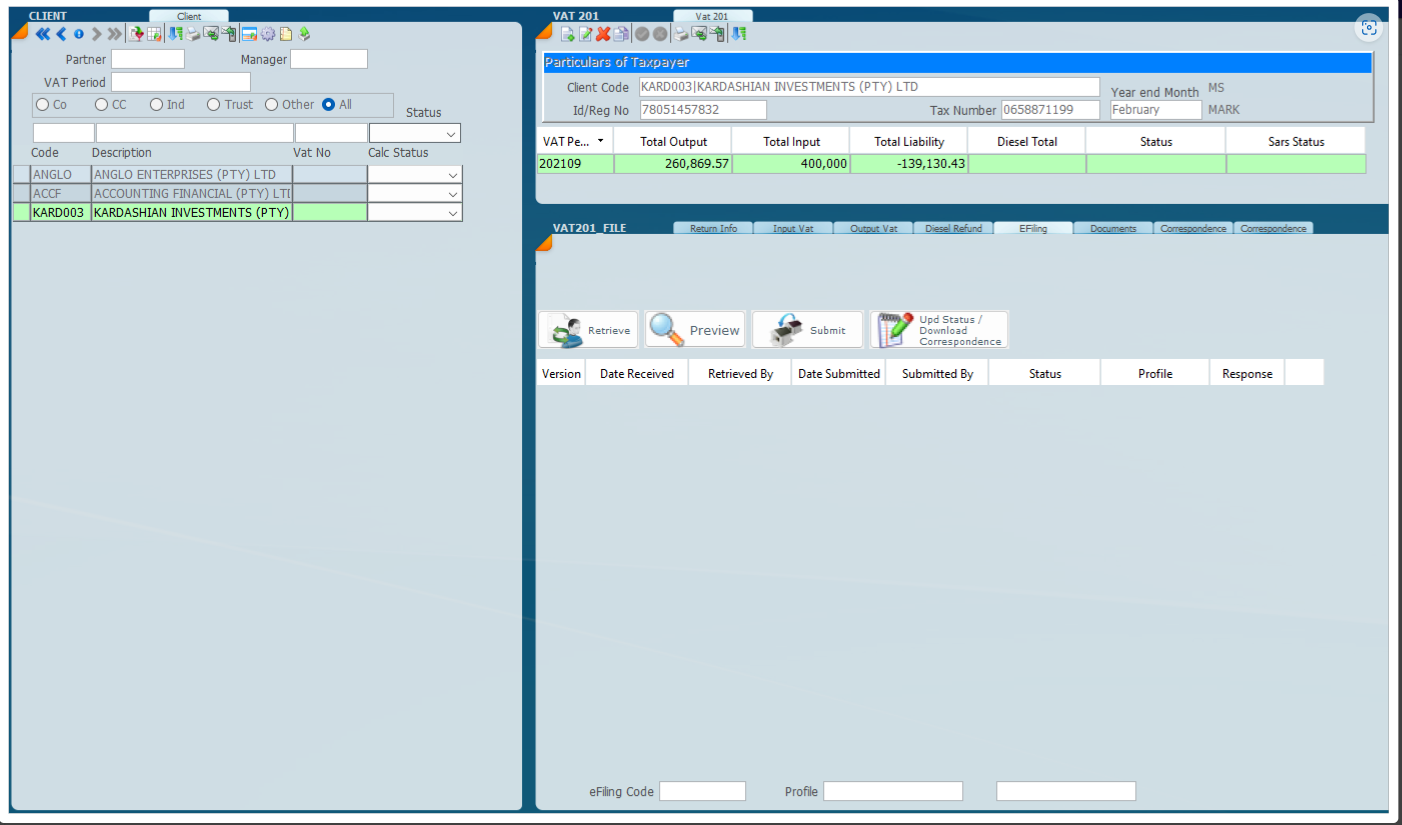
By selecting the efiling tab the following screen will display and you can drive the whole eFiling process from this screen.
Here you are able to retrieve the return data from SARS by clicking the Retrieve button
We cannot commence filing a tax return unless we do the retrieve function first.
We can also retrieve in bulk.
Prior to filing its imperative to print reports and run the preview option, the 2nd button on the e-filing tab. The purpose of this is to ensure that everything is up to date as there may be a change that the user is not aware of.
Running a preview before submitting a VAT return is necessary to catch potential issues early and ensure the accuracy of the submission. Here are the key reasons:
1. Identify Errors: The preview generates a pre-assessment, comparing the data you've entered with what SARS will receive. This allows you to spot discrepancies, such as outdated or missing source codes, before filing(ACCFINSKY).
2. Ensure Accurate Calculations: The preview compares your tax calculations with SARS' potential calculations, ensuring that any differences, especially involving complex areas like lump sums or tax credits, are addressed before submission(ACCFINSKY).
3. Review Submission Data: It provides a clear view of all the information that will be submitted, helping to confirm that nothing critical is missing or incorrectly entered (
By running a preview, you reduce the risk of errors that could lead to delays or additional queries from SARS. The pre-assessment will do various things as indicated below.
Once all information is checked and is confirmed to be correct the process is finalised by clicking the Submit option.
Input VAT
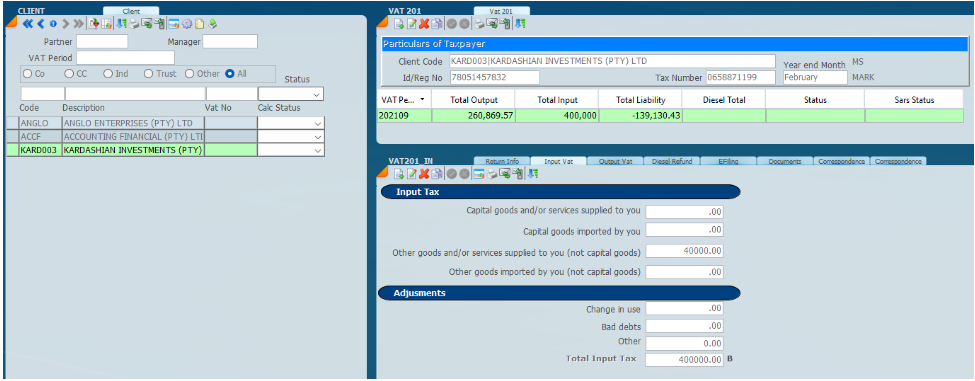
When you click on the Input VAT tab the following screen will display.
In order to create a record you need to click on the new icon on the top , and then enter all the relevant details. The delete button which is a red X on the right hand side will delete all the details for the tab you are on .
When you have put the screen into edit mode (which can be done by clicking this button ) you will be able to change the values you have previously inputted.
Output VAT
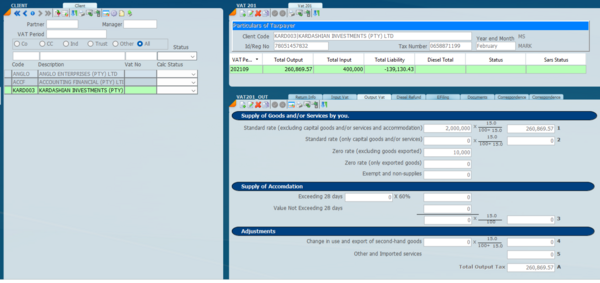
When you click on the Input VAT tab the following screen will display.
In order to create a record you need to click on the new icon on the top , and then enter all the relevant details highlighted in yellow. The system will automatically calculate the figures indicated 1 to 4 which make up the total output VAT indicated as A based off of the values you input in the highlighted fields. The value 5 will be input manually to complete the calculation.
The delete button which is a red X on the right hand side will delete all the details for the tab you are on .
When you have put the screen into edit mode (which can be done by clicking this button ) you will be able to change the values you have previously inputted.
Diesel Refund
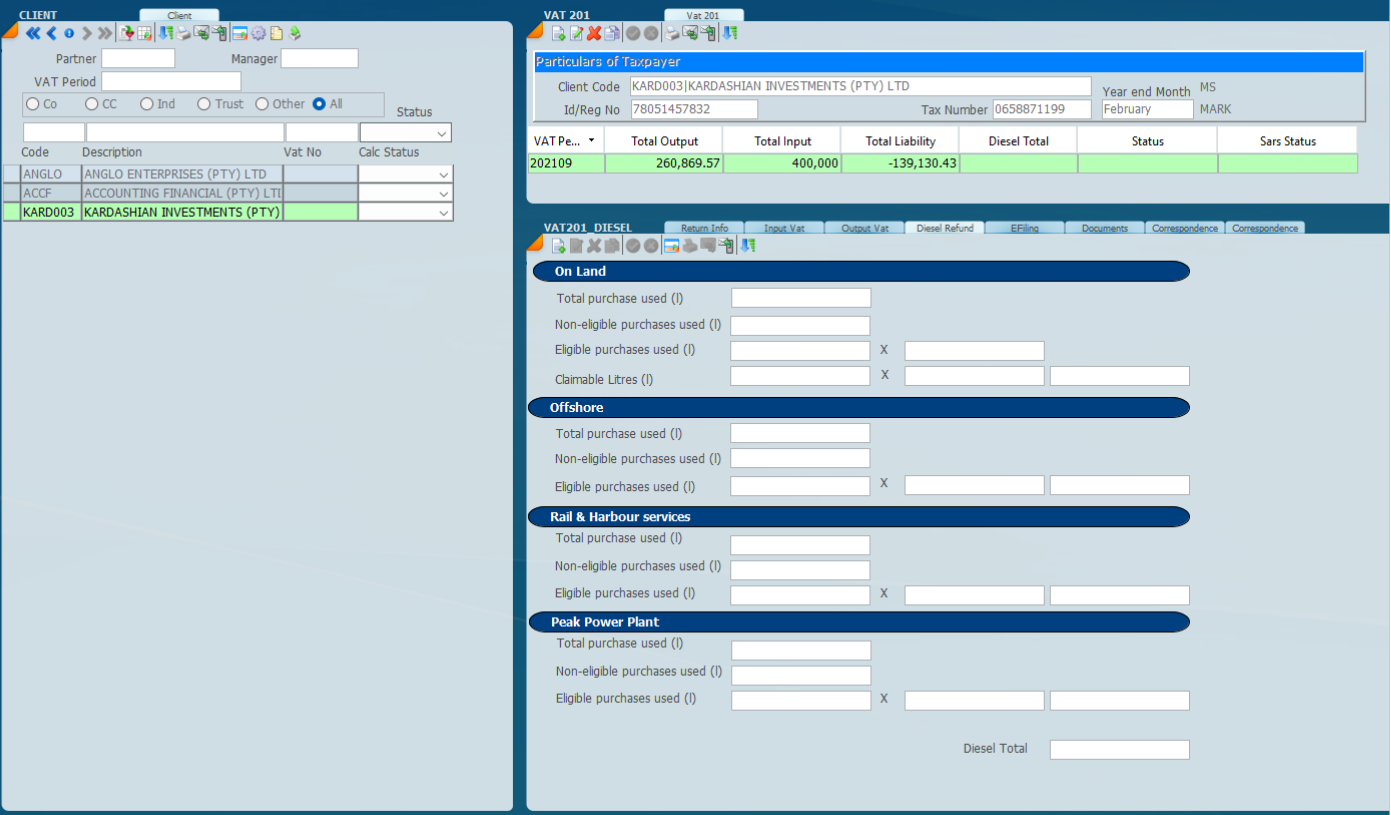
When you click on the Input Diesel Refund tab the following screen will display.
In order to create a record you need to click on the new icon on the top , and then enter the total purchase used and the non-eligible purchases used per each section they apply to. The rates at which these will be multiplied will pre-populate onto the return when you retrieve from SARS.
The delete button which is a red X on the right hand side will delete all the details for the tab you are on .
When you have put the screen into edit mode (which can be done by clicking this button ) you will be able to change the values you have previously inputted.




 , and then enter all the relevant details. The delete button which is a red X on the right hand side will delete all the details for the tab you are on
  .
. ) you will be able to change the values you have previously inputted.