The partner filter allows you to filter the entire system based on the partners or managers you have created and only allow certain users to see the clients linked to those partners or managers. In others you can block users who you don’t want to see selected clients. If its for a few clients create an additional partner filter to satisfy this requirement.
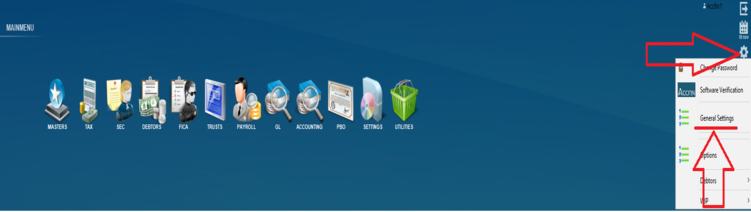
To do so you will need to go to the functions wheel from the Main Menu screen and select the General Settings option as indicated by the arrows below.
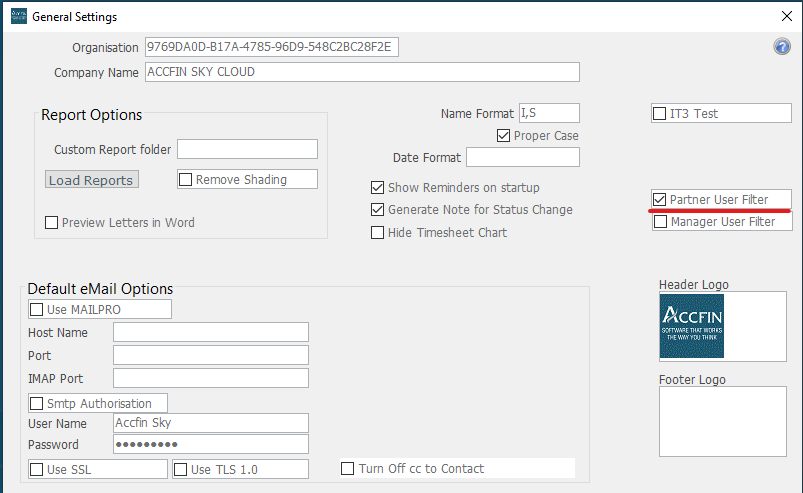
The following screen will appear:
On this screen you will need to tick to use the Partner User Filter to enable this function.
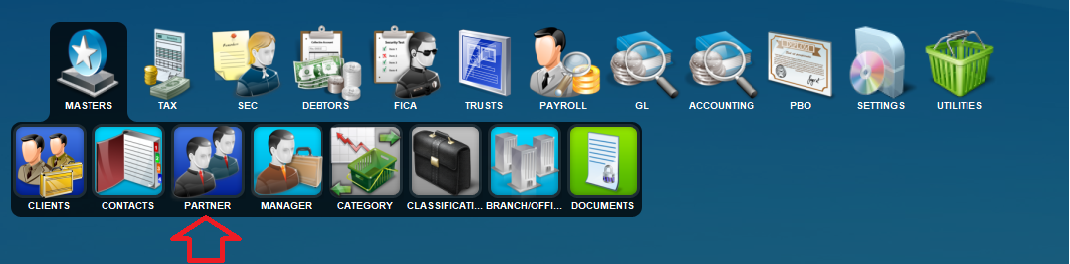
Then you will move to the Masters Partner screen.
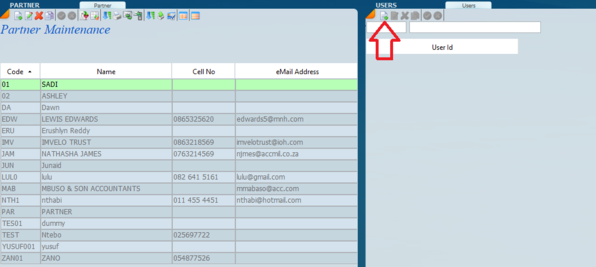
Select the partner required and the following screen will appear:
Lastly on the right hand side of the screen labelled “Users” and setup who should have access to the clients linked to this partner. Click on the new ICON as indicated with the arrow above and enter the user who you want to have access to the clients.
*Note: If the Partner screen does not have the users on the screen you will need to contact us so we can amend your user rights on the system.
**Note: If these steps are taken each user will need to be linked to a partner for them to be able to use the system.