This screen is used to control and track queries and objections
How to Query/Objections
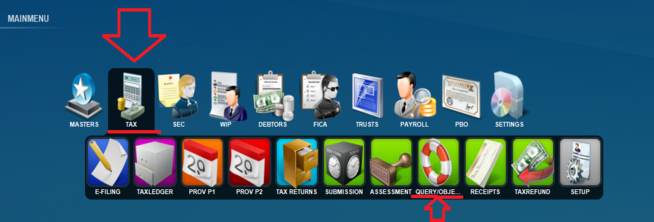
Select The menu option Query/Objection from the Tax sub menu:
The screen is divided into two tabs the Enquiry tab and the Data Entry tab.
When first arriving on the screen you will start on the Enquiry tab.
This only shows you a list of the queries you have created and the details relating to them as well as a place to link documents to these queries. This can be done by clicking the button at the bottom of the screen, then a list of documents for this entry will appear beneath it. Shown below in green.
In the bottom left
On this screen you will have various options to filter your list by type and status while still also filtering by the usual details across the system with the advance filter button.
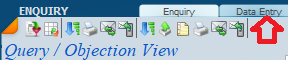
To create a new objection/query you will need to navigate to the Data Entry tab at the top right of the screen:
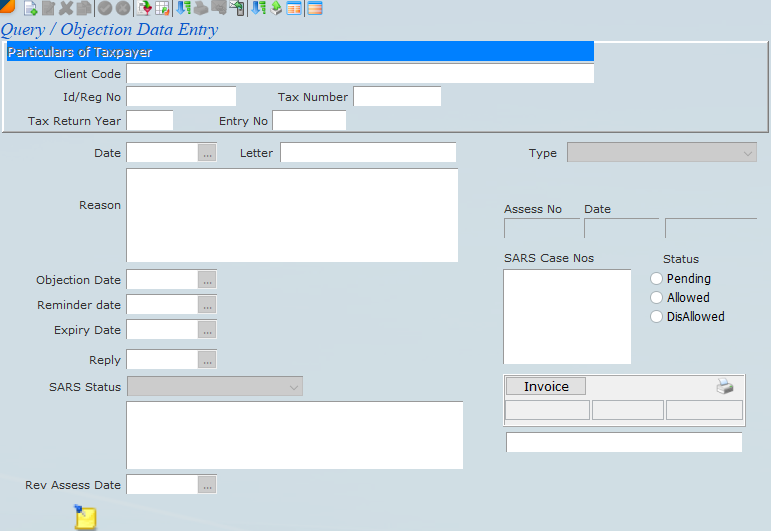
The following screen will appear and this is where you will create the new entry.
To create a new entry, first click on the new button then fill out the details of the query/objection like the client code, the type of entry this is, the SARS Case No, a reason for the entry, and dates pertaining to this entry this is shown below indicated by the red arrows.
To finalize the entry you will need to click on the green tick at the top right to save .
You can also select the letter that you wish to link for this entry, this can be printed by clicking the printer button at the top of the screen . This is shown below by the green arrow.
If you need to edit an entry you can do so by clicking on the switch view button and then finding the entry you wish to edit then switching back to the detailed view button then the edit button .
This screen also has the facility for notes to allocate to other users by using the button at the bottom of the screen.
Once done on the data entry screen the entry you have created will appear under the enquiry tab.



 button at the bottom of the screen, then a list of documents for this entry will appear beneath it. Shown below in green.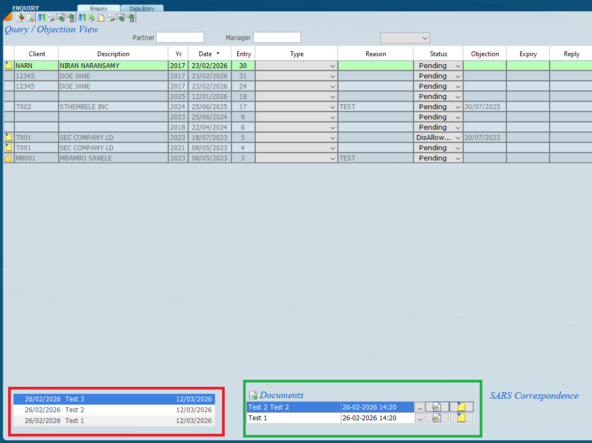

 .
. . This is shown below by the green arrow.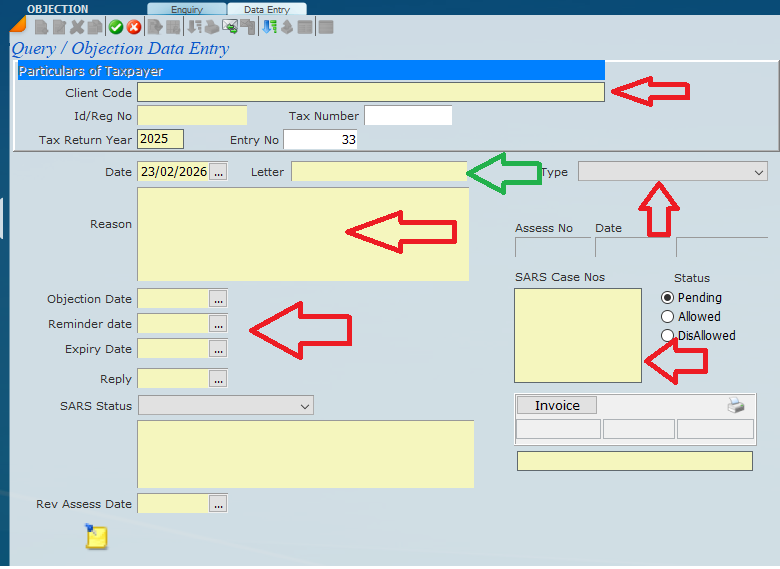
 and then finding the entry you wish to edit then switching back to the detailed view button
  then the edit button
  .
. button at the bottom of the screen.